All guidesEvery day
Other days, Week and Month
Rondia opens on today. Everything else is one swipe or one tap away.
Step 1: Go to another day
On the Day screen, any of these:
- Swipe the list sideways for the next or previous day.
- Tap the arrows on either side of the date.
- Tap the date itself to pick any day from a calendar.
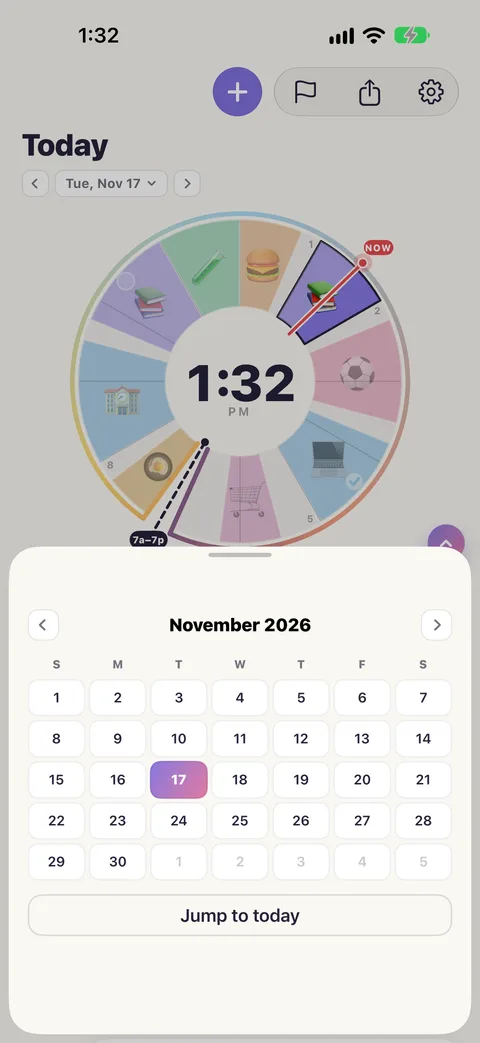
When you are away from today, a Today button appears beside the date to take you back.
Step 2: Plan ahead
Planning tomorrow is the same as planning today: go to the day and add blocks. Or stay where you are and write the day into the block: "Dentist tomorrow 3-4pm", "Game on Saturday at 10".
Step 3: See the week
Tap Week at the bottom. Seven days side by side, each drawn top to bottom in its blocks' colours, so a full day looks full and a free afternoon looks free.
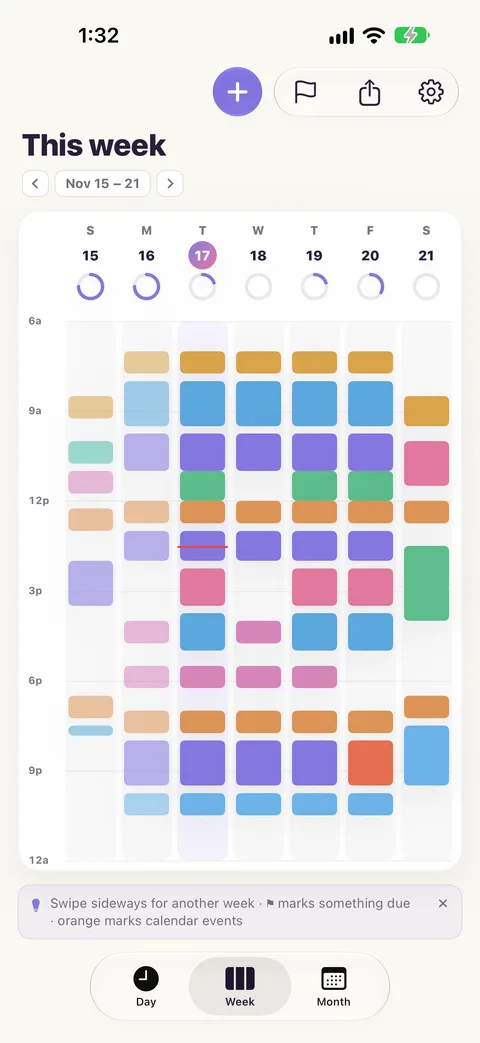
- Swipe sideways for another week.
- Tap a day to open it.
- ⚑ marks a day with something due. Orange marks calendar events.
Step 4: See the month
Tap Month. Each day shows a dot in its main colour, so you can tell school days from weekends at a glance.
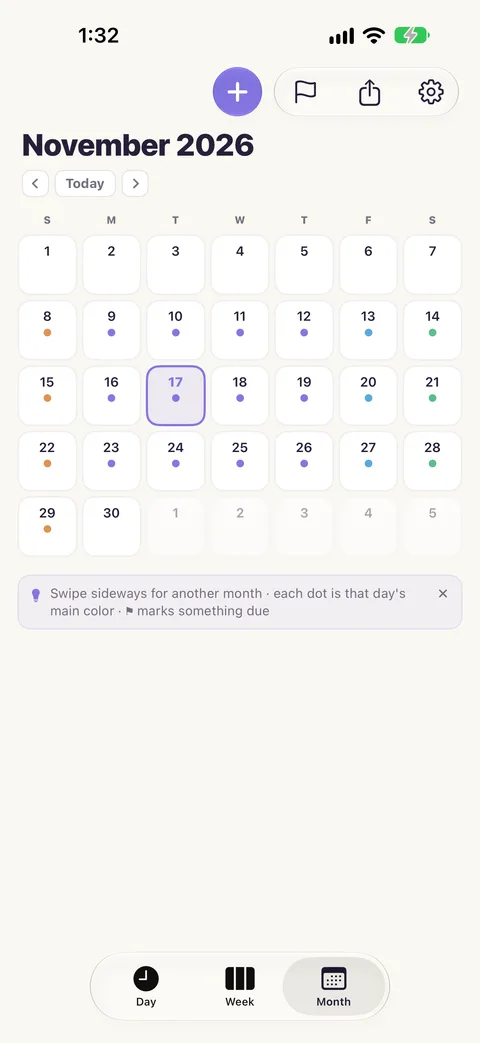
Swipe sideways for another month. Tap a day to open it.