Everything Rondia does
Rondia is small on purpose. It does one job, your day, and tries to do it well. Here is all of it.
The dial
-
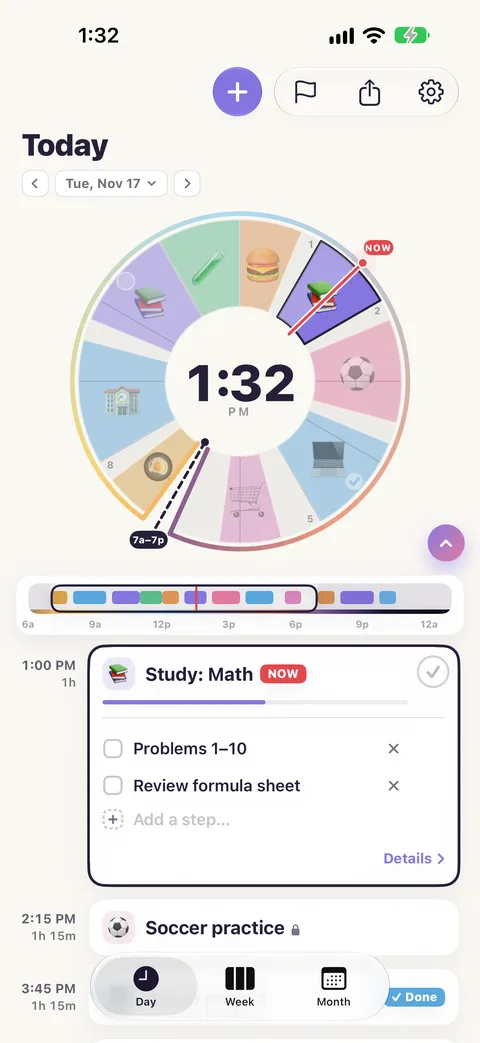
Your day as a circle.
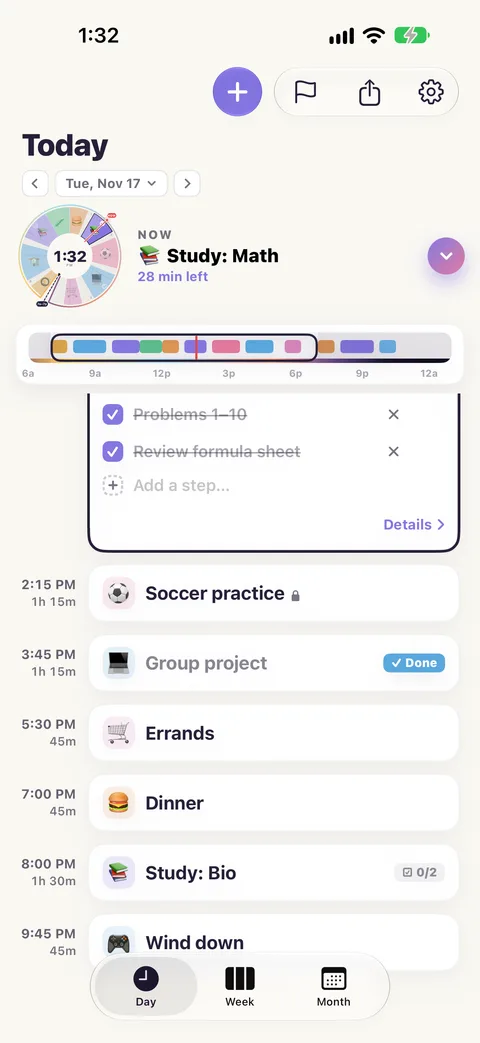
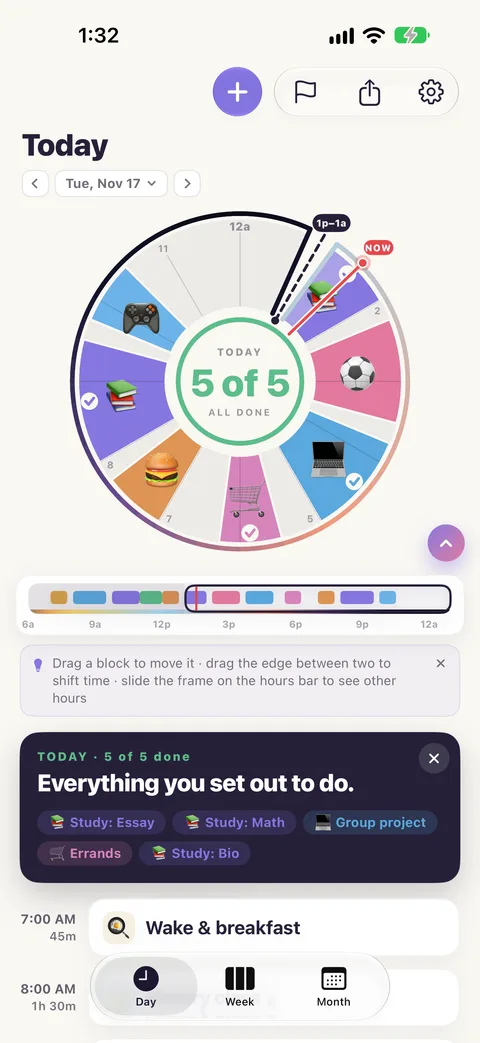
Twelve hours on a clock face, a coloured block for each thing you planned. The red line is now, and the block you are in fades up to it.
-
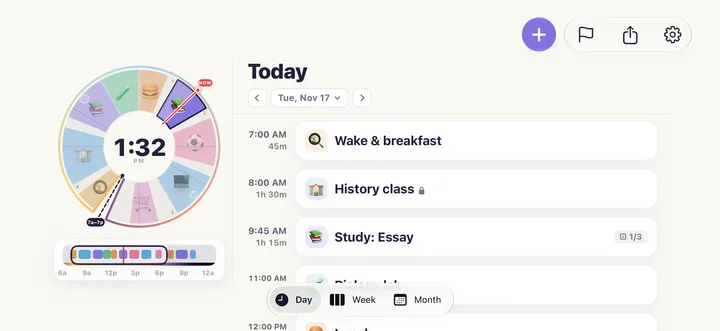
Room for both.
Turn your iPhone on its side, hold an iPad sideways or open an iPhone Duo, and the dial sits beside your day's list.
-
All 24 hours, one bar.
Under the dial, the hours bar shows the whole day. Slide its frame to turn the dial to other hours, early morning or late night.
-
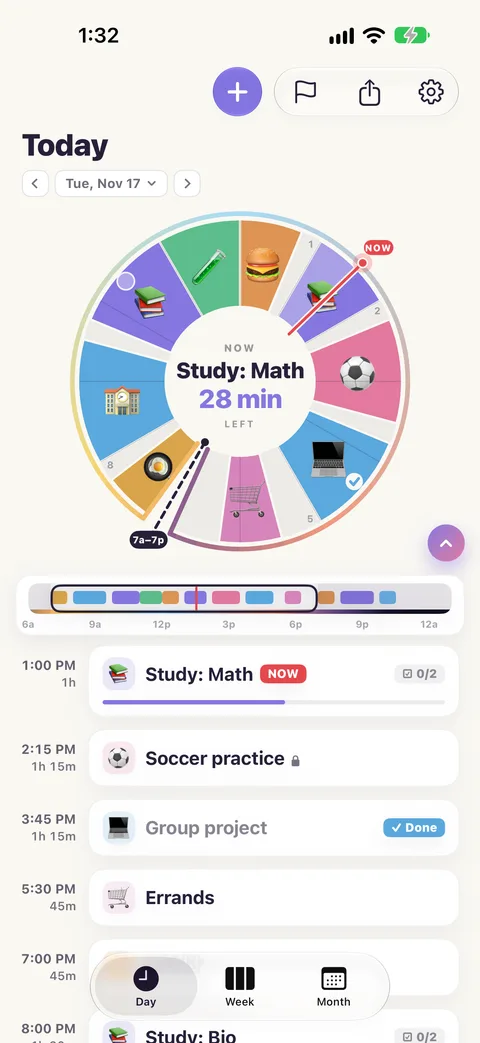
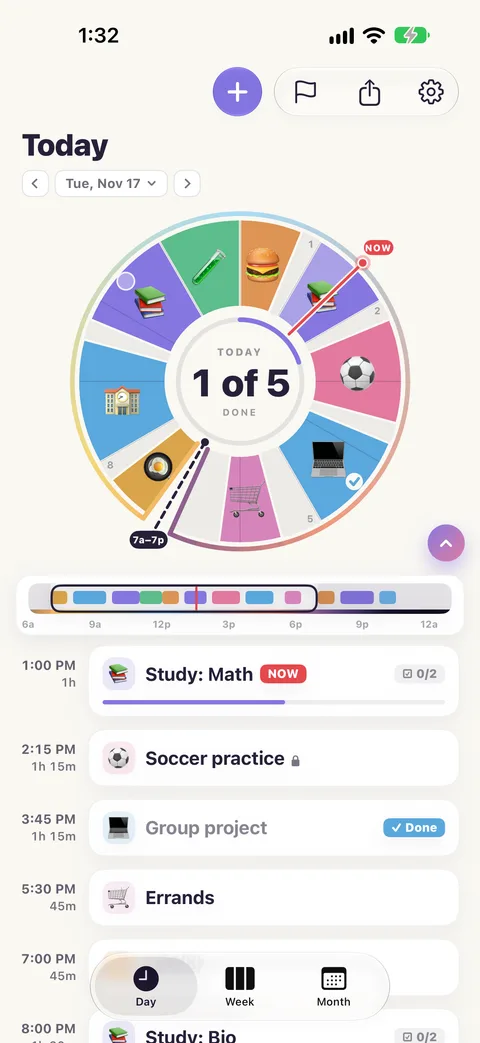
The centre keeps you posted.
Tap the middle of the dial to switch between the time, the block that is on now with the minutes it has left, and how many things you have finished today.
-
The list underneath.
The same day as a list, for when you want to read it. Tap a block on the dial and its card opens in the list. Shrink the dial to give the list the whole screen.
Adding to your day
-
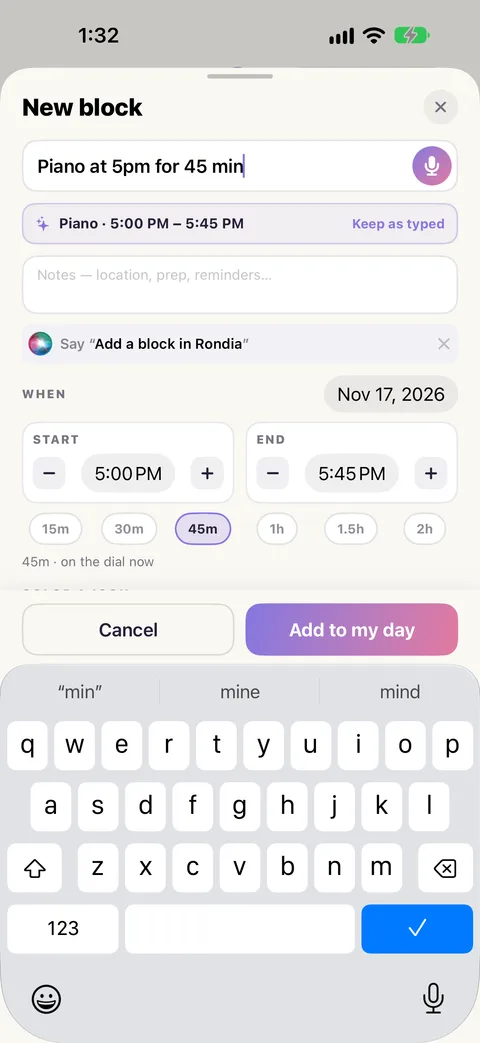
Say it in one line.
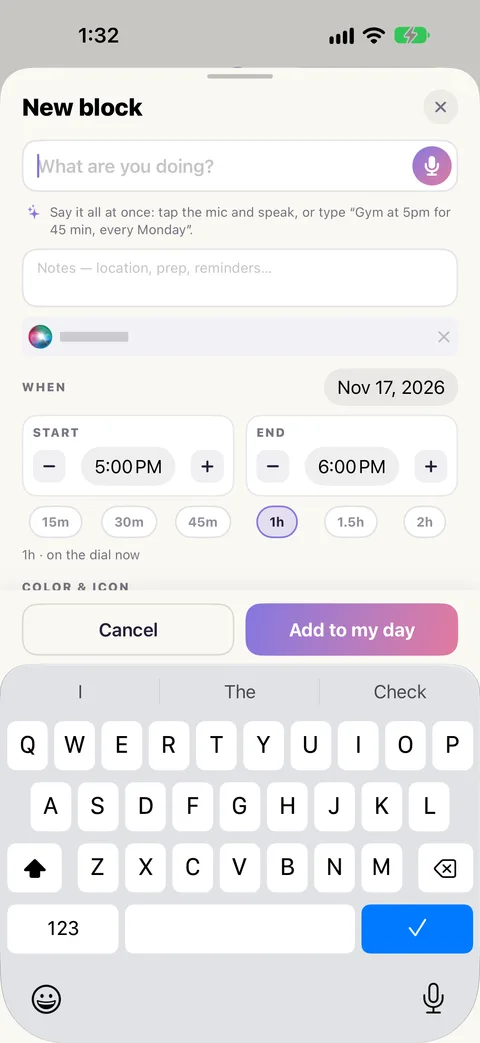
"Gym at 5pm for 45 min." "Dentist tomorrow 3-4pm." "Piano every Monday and Wednesday at 4." Type it and Rondia fills in the time, the length, the day and the repeat.
-
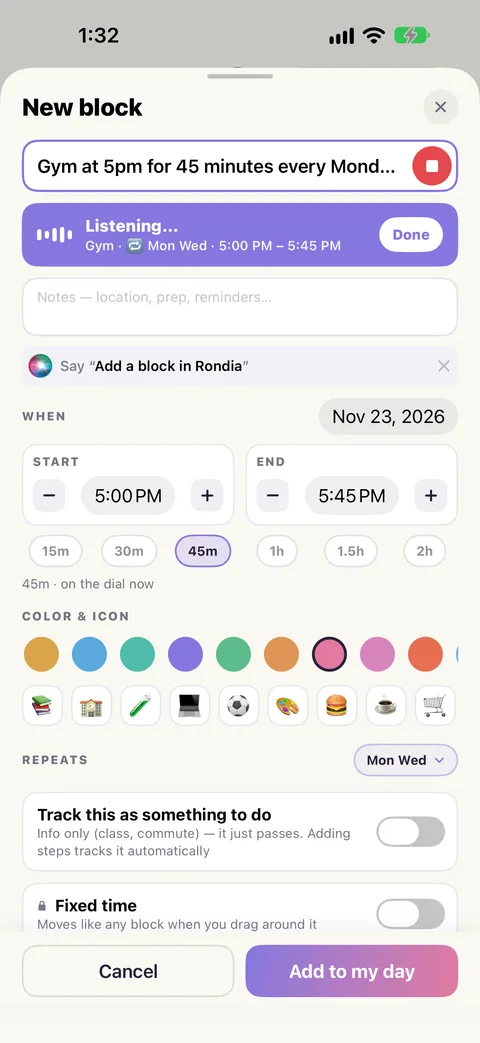
Or just say it.
Tap the microphone in a new block and speak the same sentence. Rondia listens only while you talk and keeps no recording.
-
Tap the dial.
Tap an empty part of the dial and a new block starts right there.
-
Ask Siri.
"Add a block in Rondia." Siri asks what, when and for how long. It is in Shortcuts and on the Action button too.
-
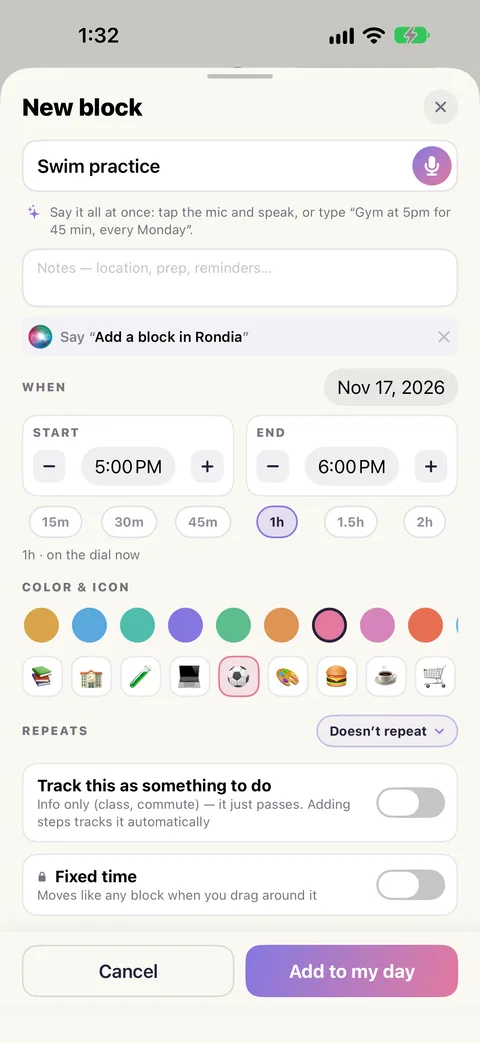
An icon and a colour, picked for you.
"Lunch" gets a burger, "Soccer practice" a ball. Change either any time: there are ten colours.
-
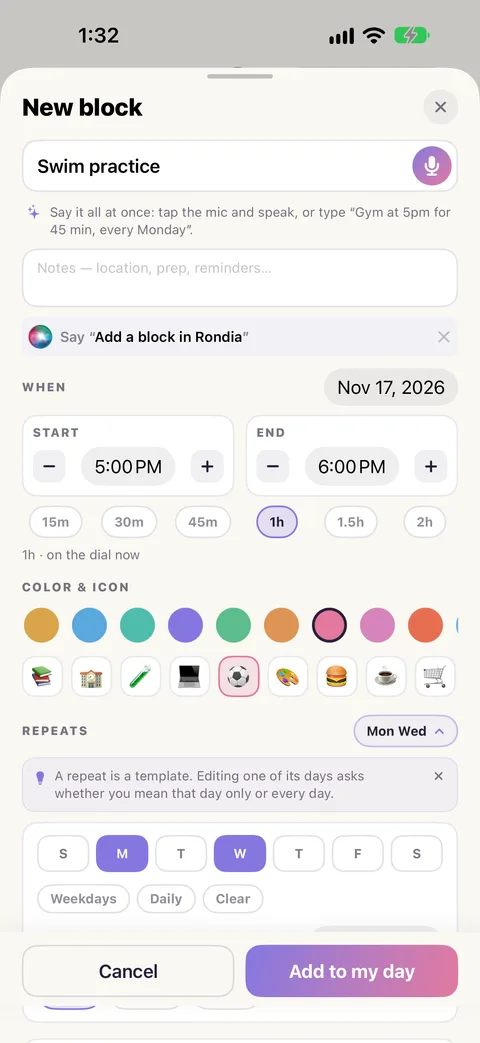
Things that repeat.
School on weekdays, practice on Tuesdays and Thursdays. Change one day or every day from here on; Rondia asks which you mean.
Changing your day
-
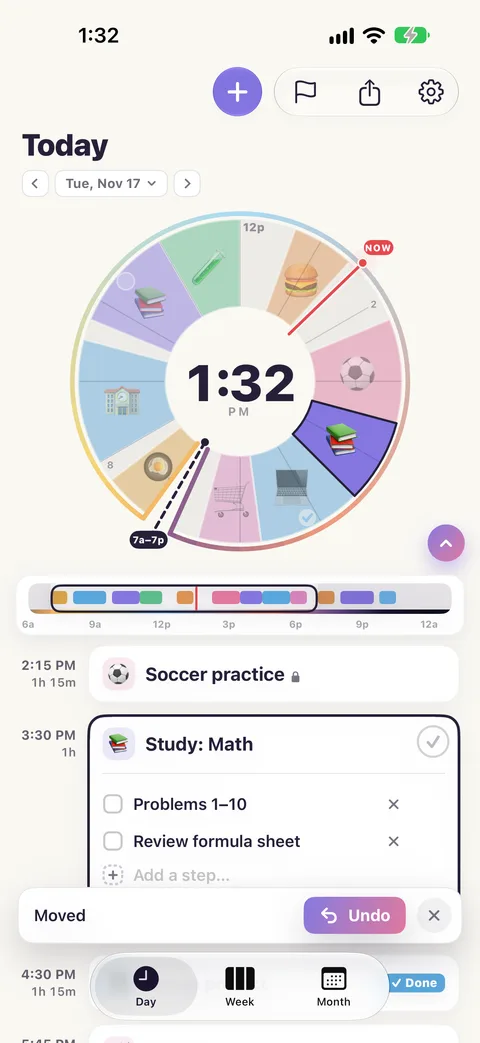
Drag a block.
Move it and the blocks after it shift along to make room. Nothing ever overlaps.
-
Drag an edge.
Pull the edge between two blocks to give one more time and the other less.
-
Undo.
After any drag or delete, one tap puts the day back.
-
Fixed time.
Class starts at 8:00 whatever else happens. Mark a block Fixed time and nothing can push it; everything else flows around it.
-
Breaks, added for you.
Two blocks a few minutes apart get a short break between them, so there is time to change over. You can turn this off.
Finishing things
-
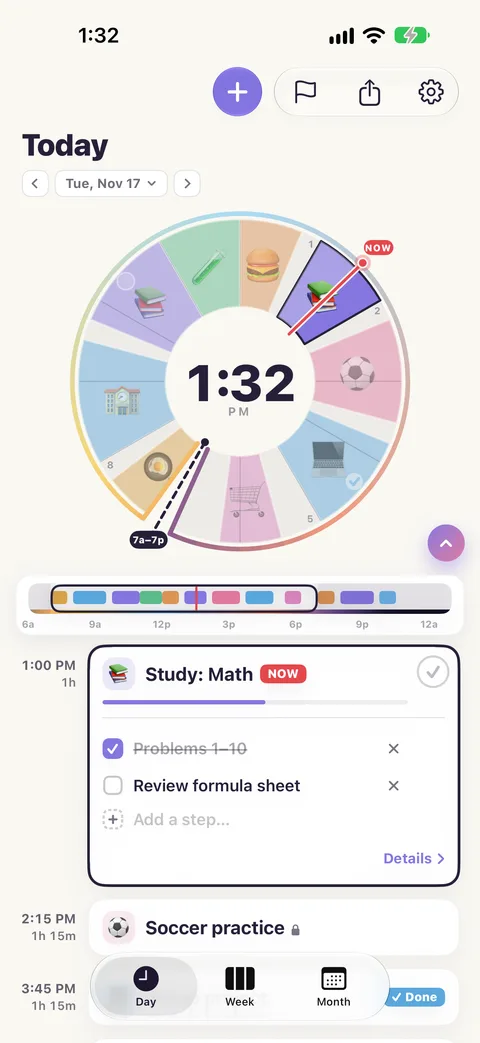
Steps.
Break a block into small steps, "Problems 1 to 10", "Review formula sheet", and tick them as you go.
-
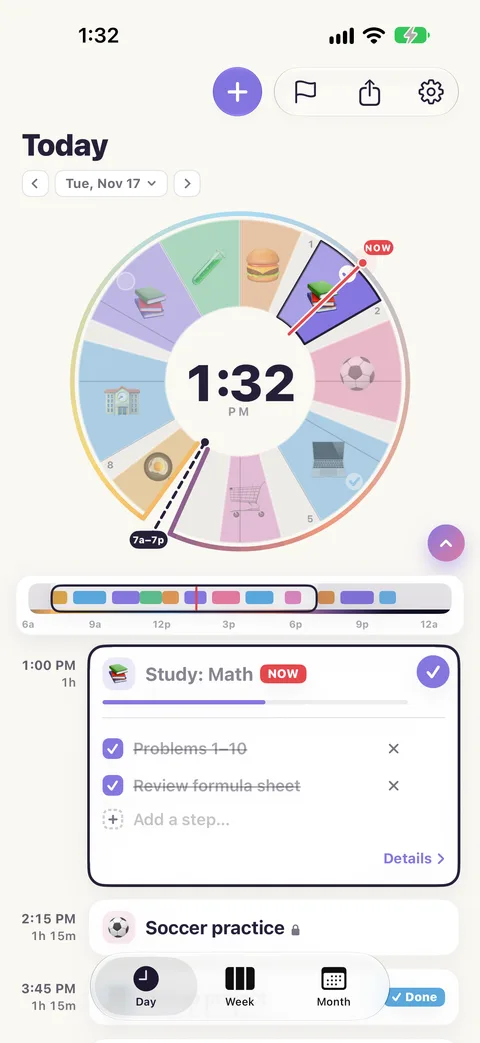
Mark done.
Tick the whole block when it is finished. The dial marks it.
-
A count, not a list.
The centre of the dial shows "3 of 5 done". When everything is done, the day closes with a card that says so.
Deadlines
-
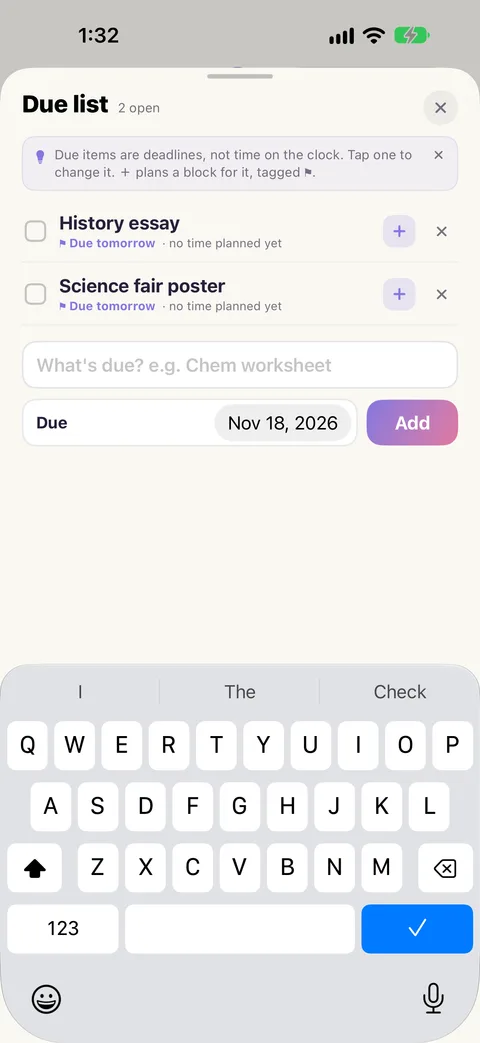
The due list.
Things with a date, not a time: the history essay, the science fair poster. Keep them in the ⚑ list.
-
Plan time for them.
Tap + on a due item to put a block for it on your day, tagged ⚑ so you know what it is for.
The week and the month
-
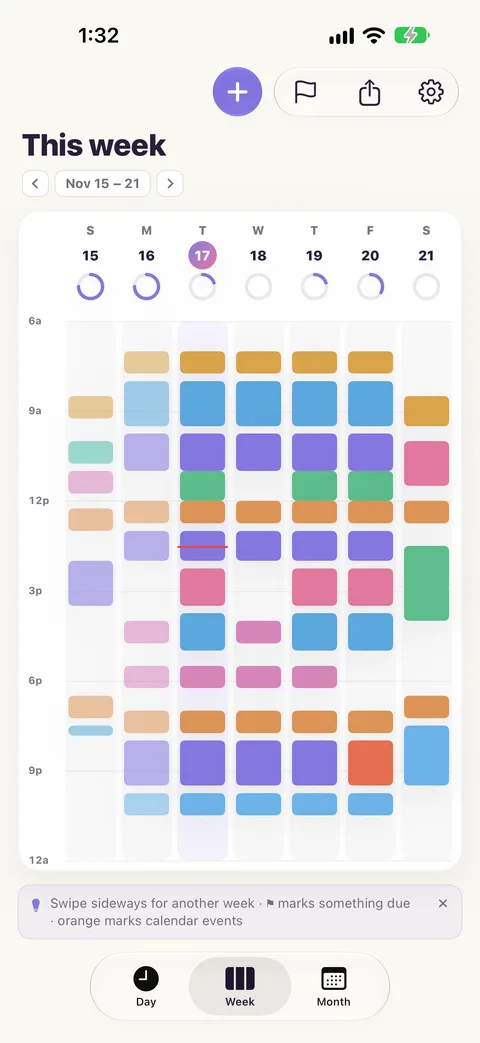
Week.
Seven days side by side, to see which days are full. Tap a day to open it.
-
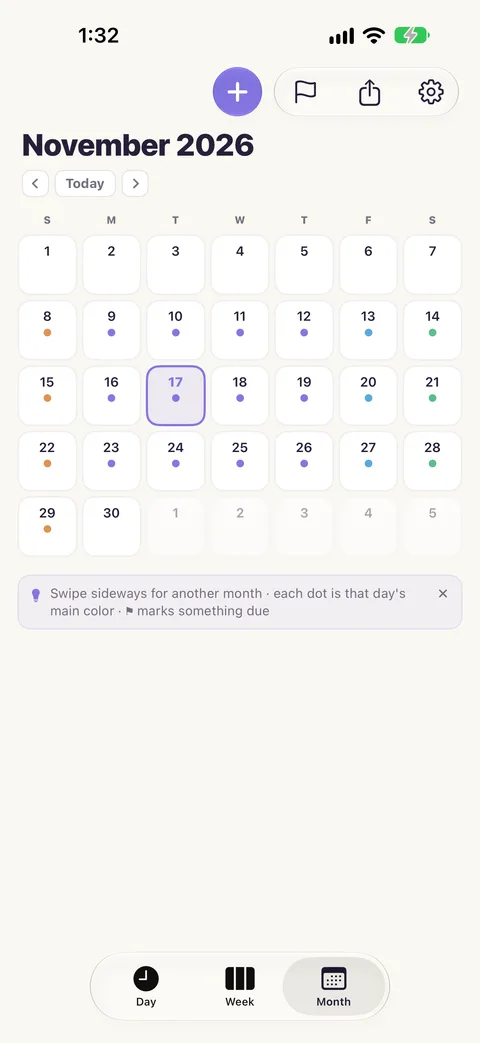
Month.
The month at a glance, each day marked with its main colour. Swipe for the next one.
Your calendar
-
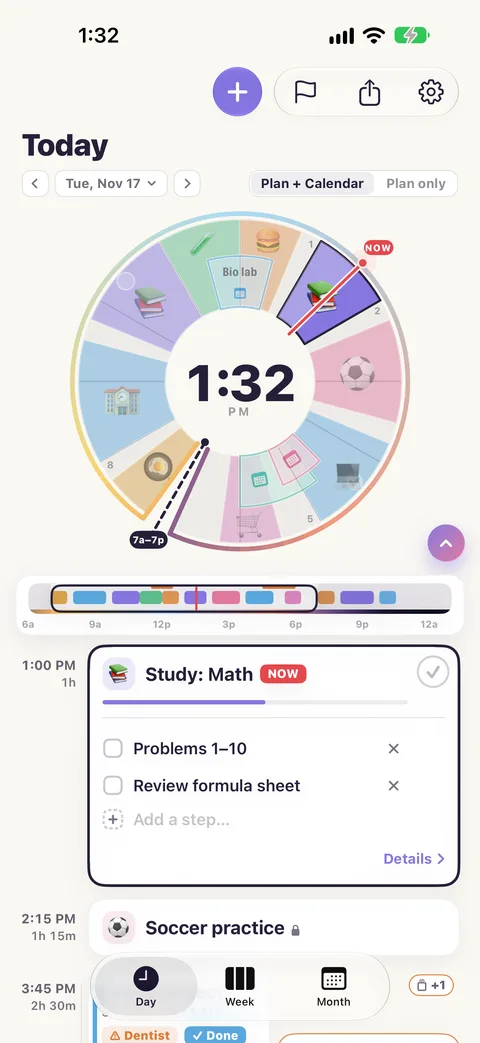
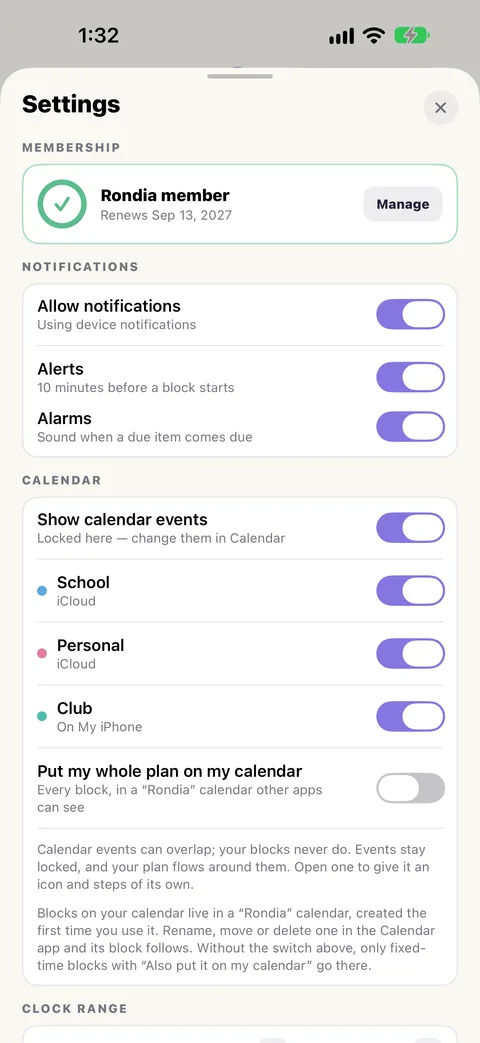
See your calendar events on the dial.
Events from the iPhone's Calendar show as short outlined wedges inside the ring. Orange always means "from your calendar". They do not move, and your plan flows around them.
-
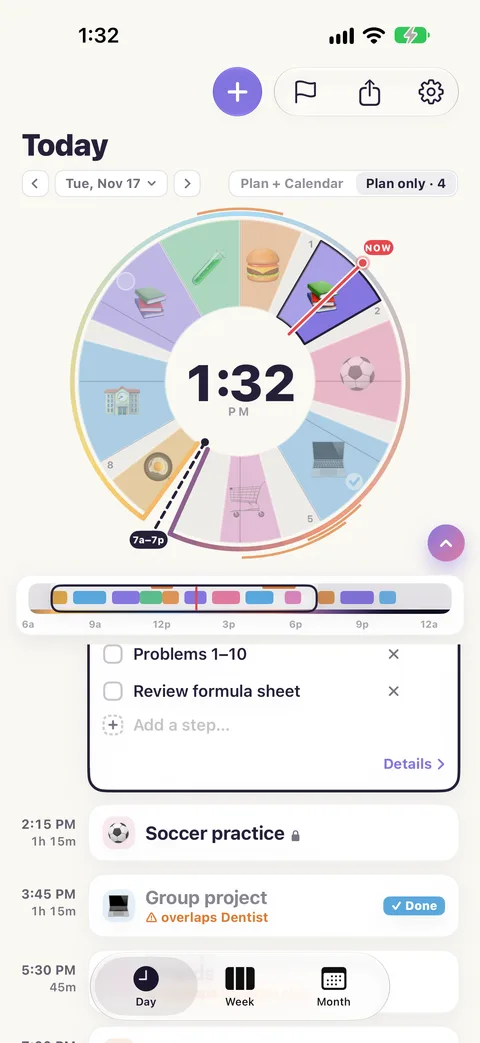
Plan only.
One tap hides the events from the ring when you want to see just your own plan.
-
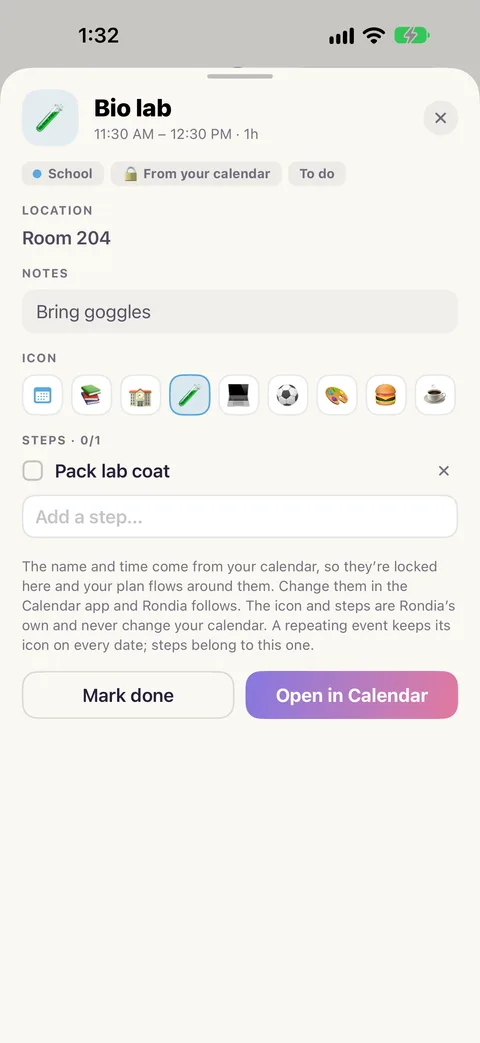
Steps for an event.
A calendar event cannot be changed in Rondia, but you can give it an icon and your own steps, and tick it done.
-
Your plan on your calendar.
Put fixed blocks, or your whole plan, into a "Rondia" calendar so it shows wherever your calendar does. Change one of those events in Calendar and the block follows.
Everywhere you look
-
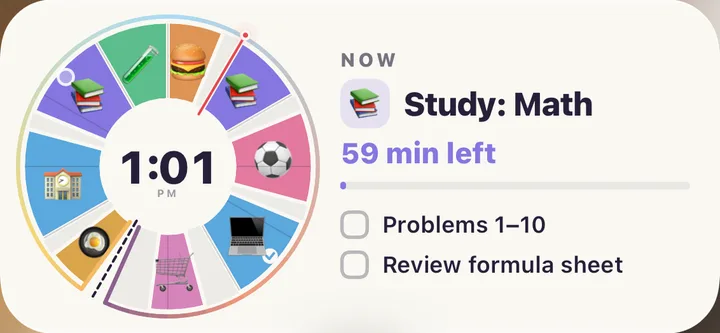
Home Screen widgets.
A small one (the dial) and a medium one (the dial, the block that is on, and its steps, which you can tick right there).
-
Lock Screen and StandBy.
The block that is on and what follows it, "Until 2:00 PM · then Soccer practice", or a tiny dial.
-
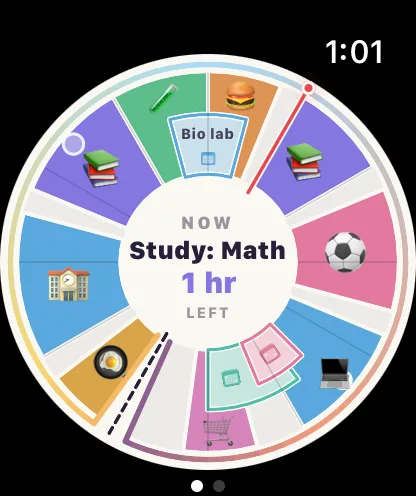
Apple Watch.
The dial on your wrist, the day as a list, Mark done, and a tap on the wrist when the next block starts. Plus watch-face complications.
-
A heads-up before each block.
A notification 10 minutes before a block starts, and an alarm when a due item comes due. Offered once you have a block, never at first launch.
Sharing and syncing
-
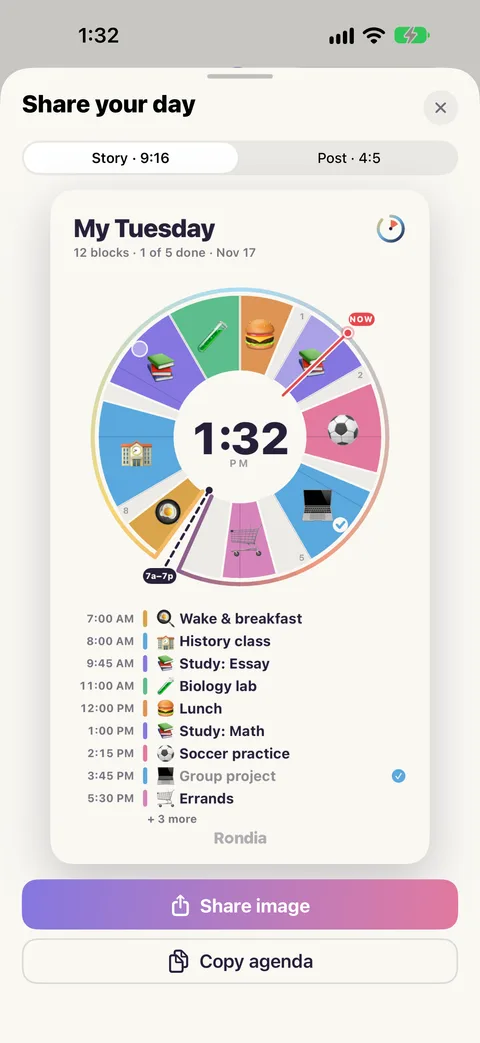
Share your day.
Send your day as a picture, or copy it as text.
-
All your devices.
Your plan syncs through your own iCloud between your iPhone and iPad. The watch gets its day from the iPhone.
-
Works offline.
Everything works with no connection. Syncing catches up later.
Make it yours
-
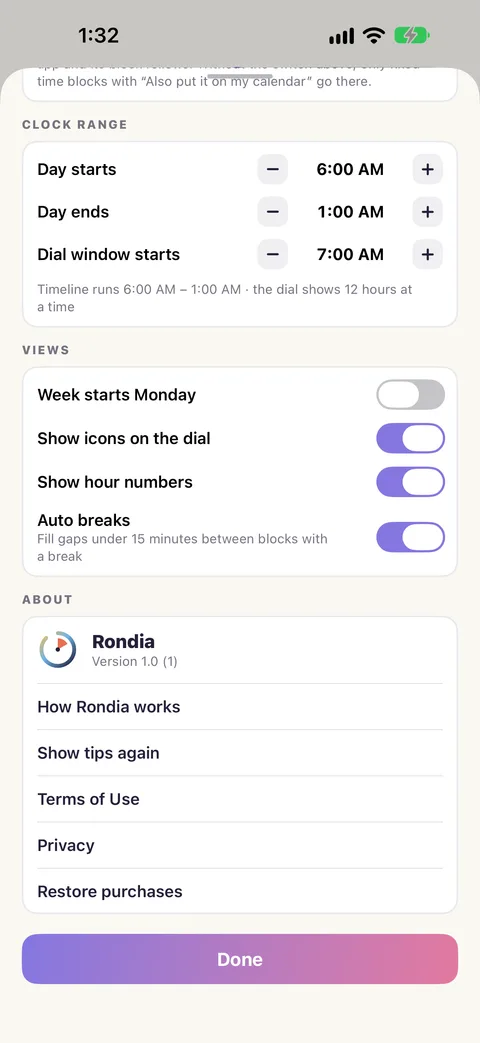
Your hours.
Tell Rondia when your day starts and ends, and which twelve hours the dial opens on.
-
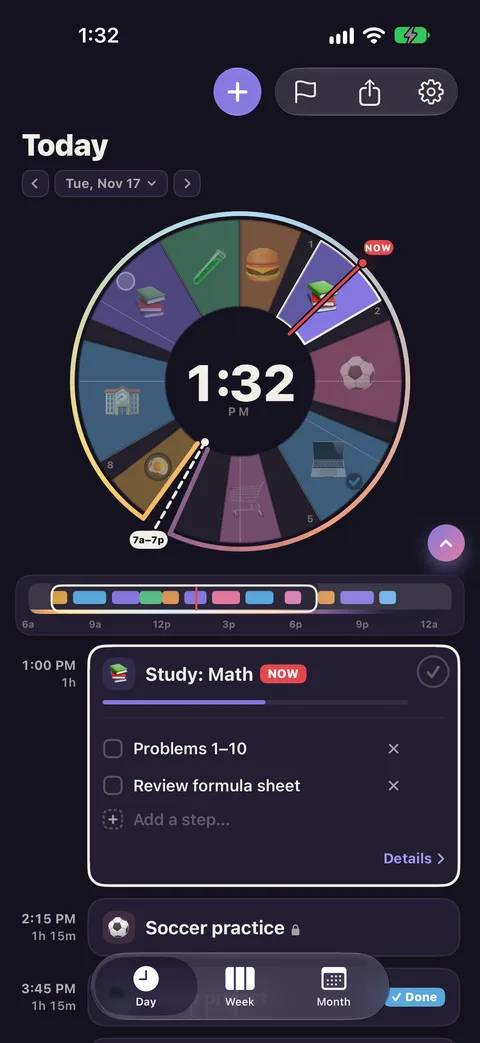
Dark Mode.
Follows your iPhone.
-
Bigger text, VoiceOver, Reduce Motion.
Text follows your iPhone's text size. Every block on the dial can be read and moved with VoiceOver. Animations step aside when you ask.
What Rondia does not do
- It is not a shared family calendar. Each person plans their own day on their own device. A parent cannot yet send a block to a child's phone.
- It does not replace your calendar. It shows your calendar's events and plans around them.
- iPhone, iPad and Apple Watch only. No Android, Mac or web version. (An iPhone Duo is an iPhone: Rondia runs on it and uses both of its screens.)
- English only, for now.
Missing something you need? Tell me. That is how I decide what to build next.